Guide
See it before you use it.
Real screenshots of the driver app and the web Control Panel, with the exact place to tap for each step.
Screenshots were taken on a Galaxy S24 Ultra, an Android tablet and a desktop browser, using demo data and simulated chargers. Names, prices and amounts are examples.
For drivers: charging with the mobile app
From finding a station to the receipt, in eight steps.
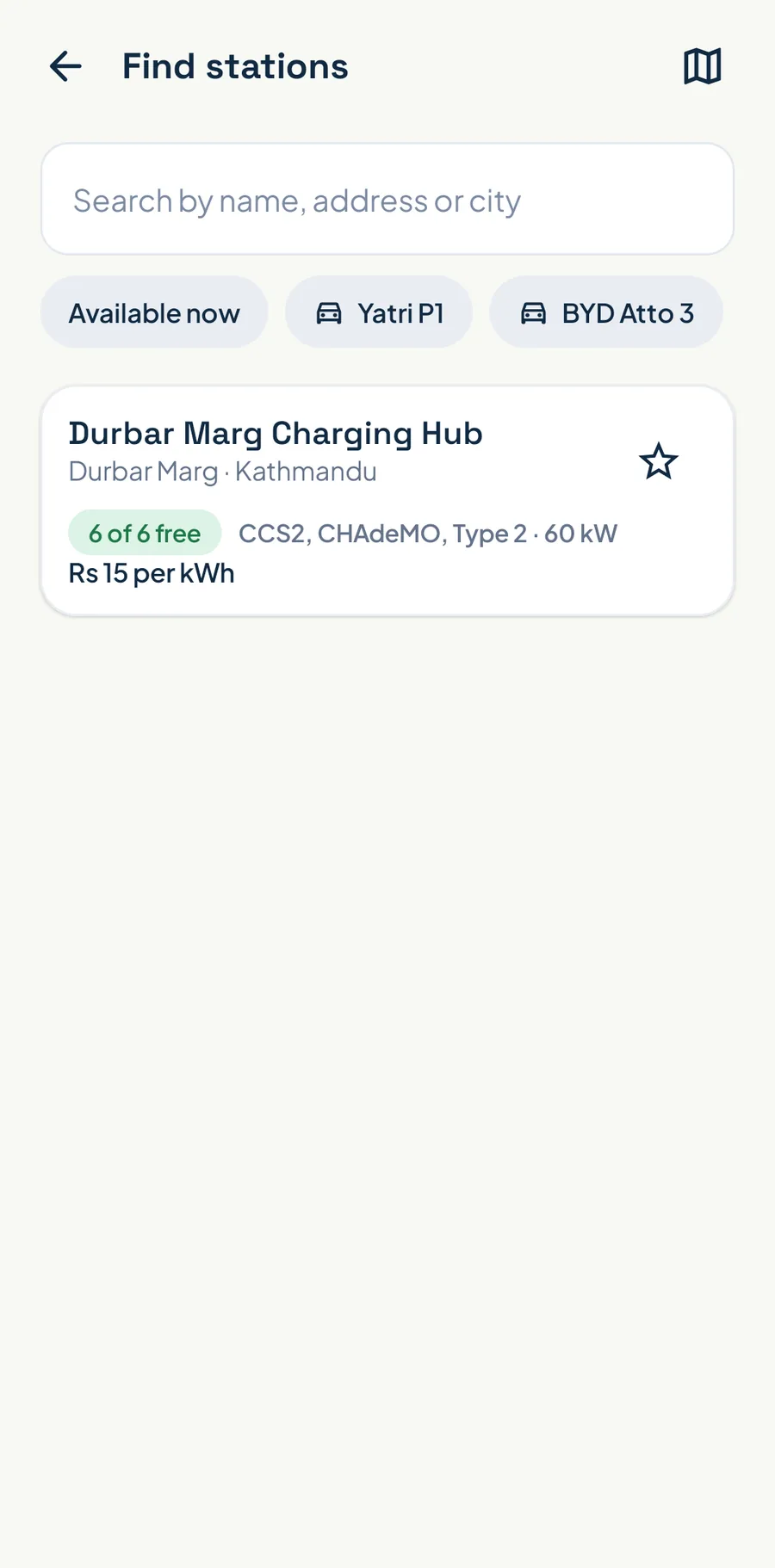
Find a station
See every station with how many guns are free, which plugs they have and the price per kWh. Switch to the map to see where they are.
Where to find it
- Driver app
- Home
- Find stations
- Map icon (top right)

Check each gun
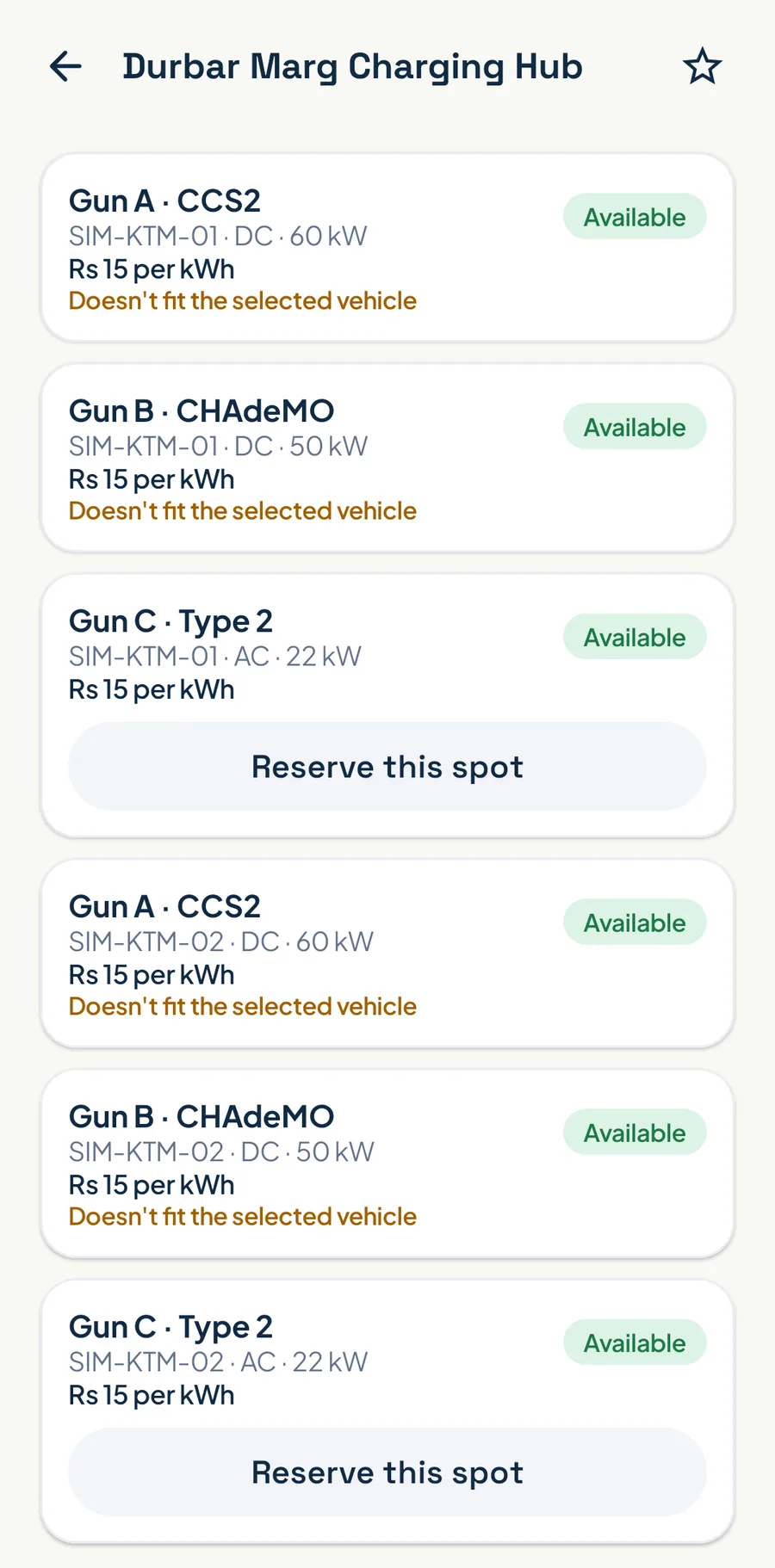
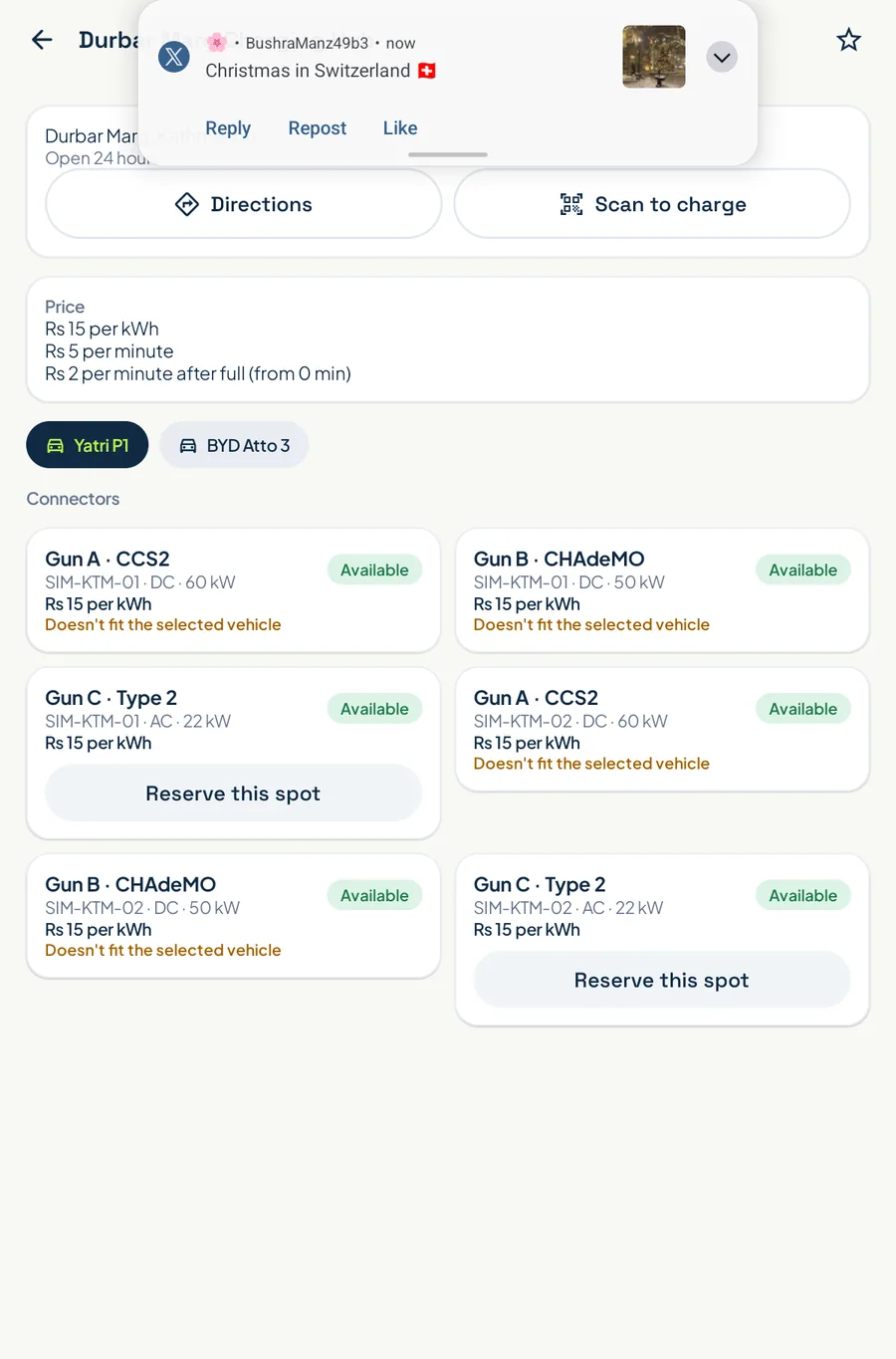
Open a station to see every gun: plug type, power, live status (Available, Charging, Not working) and its own price. Guns that do not fit your car are marked.
Where to find it
- Driver app
- Find stations
- Tap a station
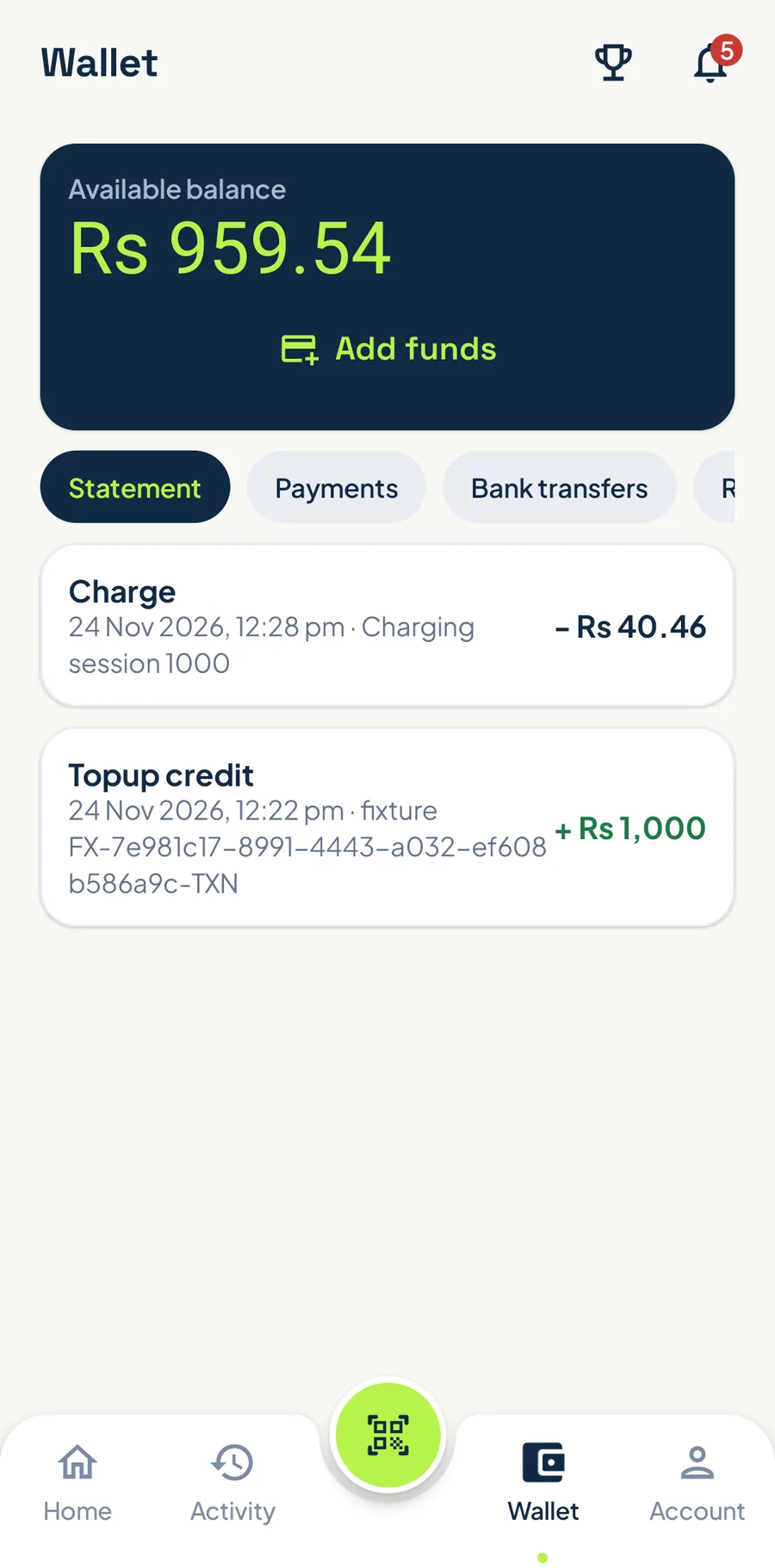
Add money to your wallet
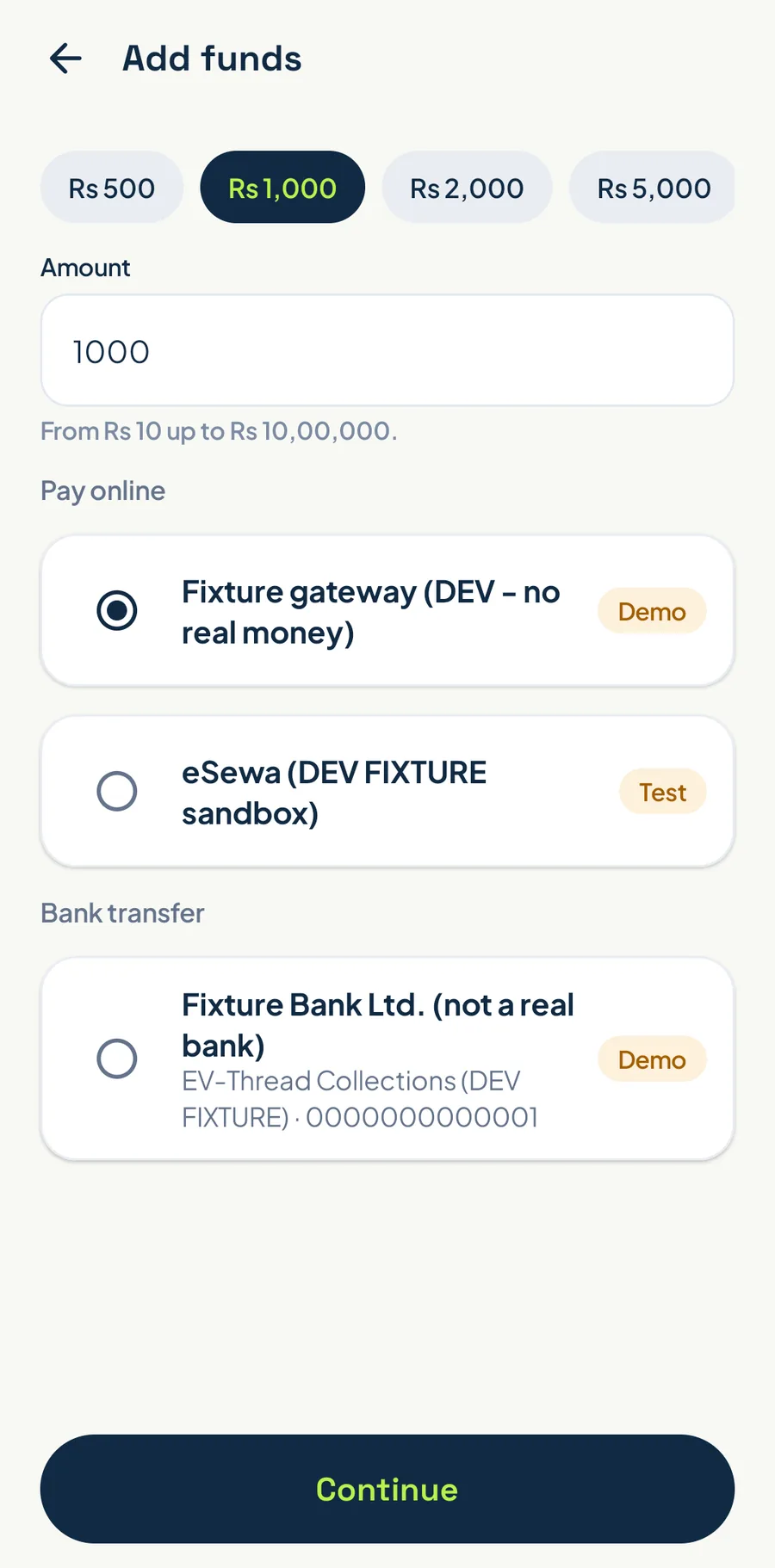
Pick an amount and a payment method. The balance is credited only after the payment provider confirms it, and every top-up shows in your statement.
Where to find it
- Driver app
- Wallet
- Add funds
Scan the gun
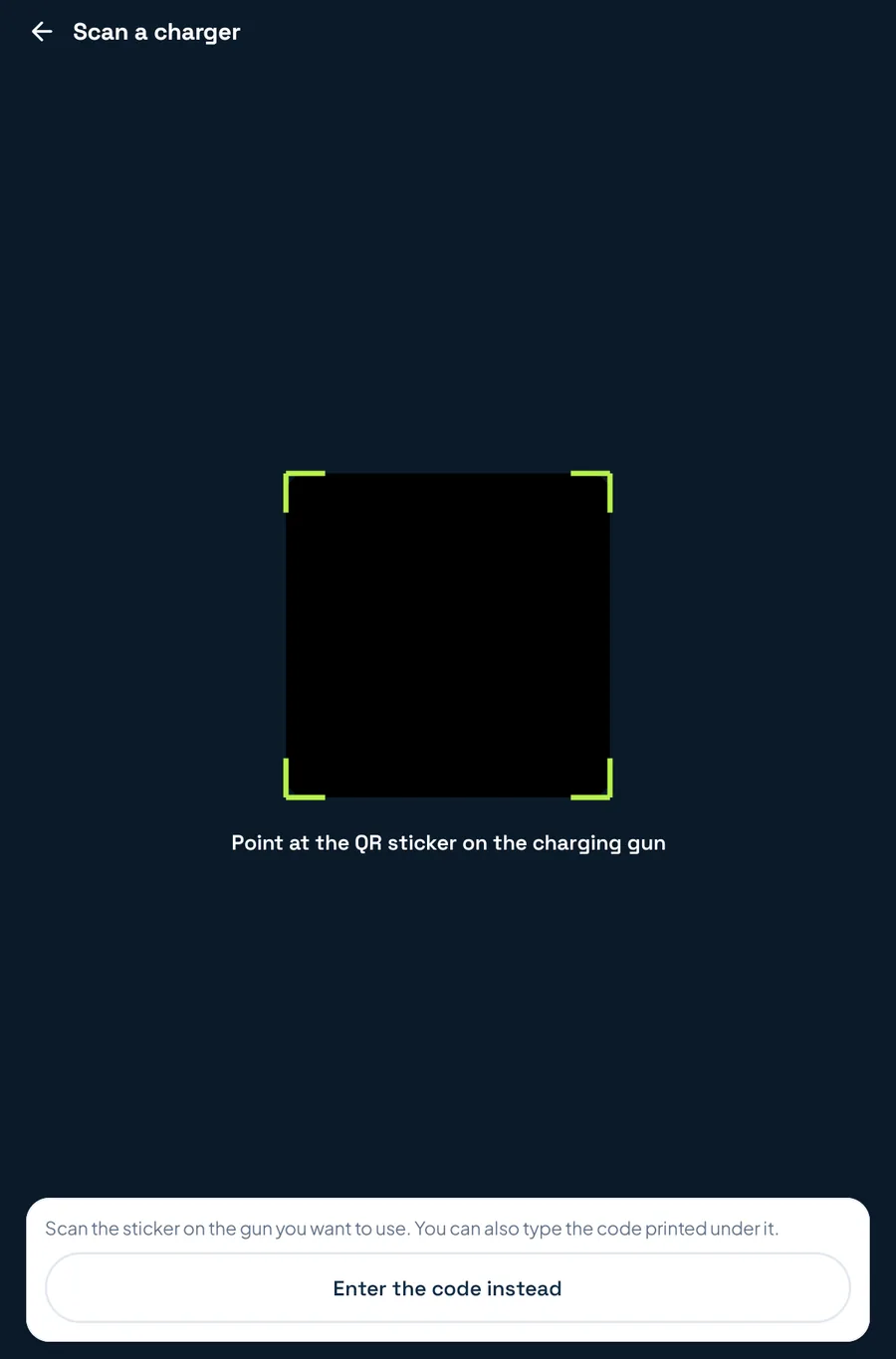
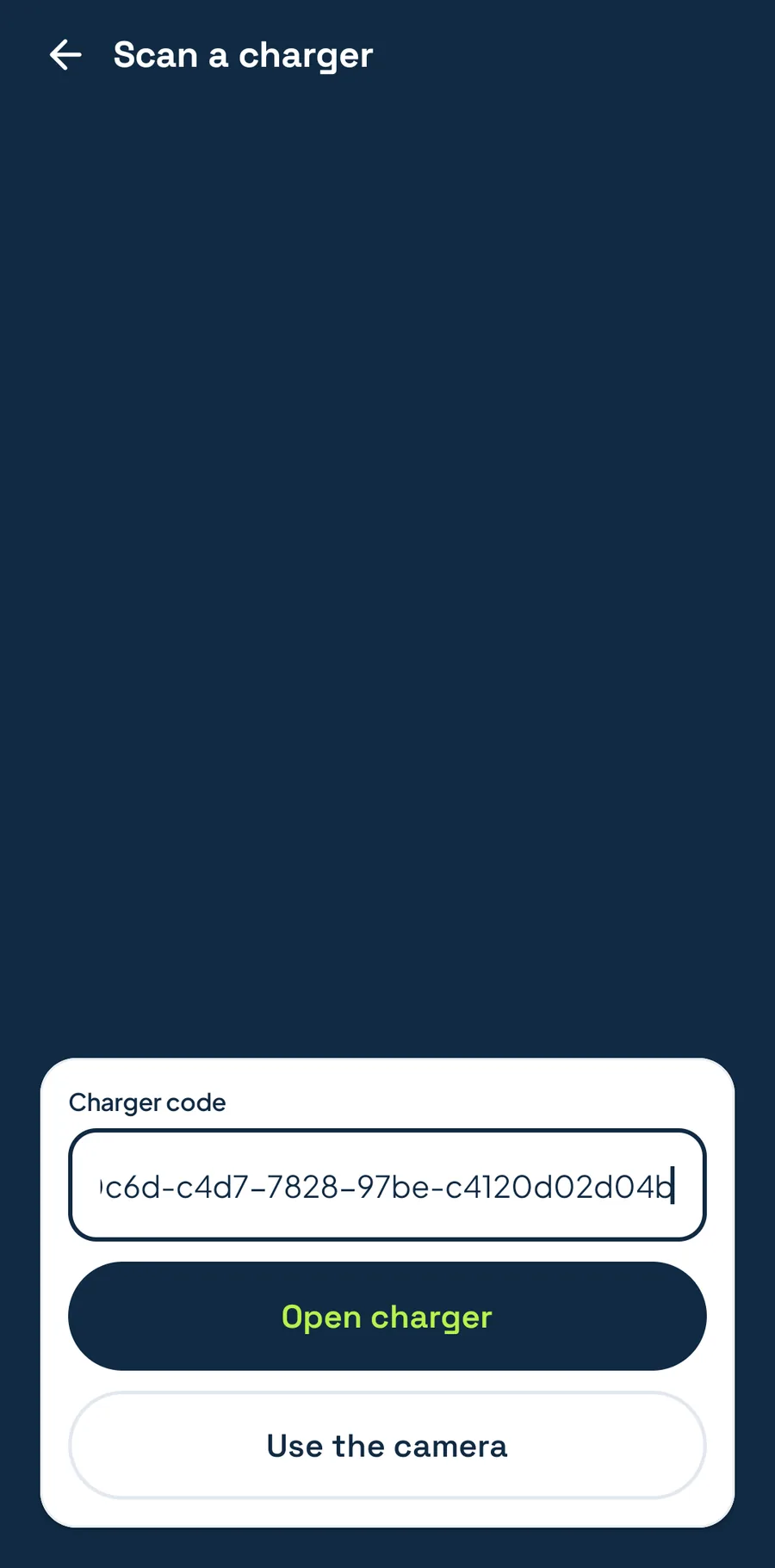
Point the camera at the QR sticker on the gun. If the sticker is hard to read, type the code printed under it instead.
Where to find it
- Driver app
- Scan button (centre)
- Enter the code instead
Choose how much to charge
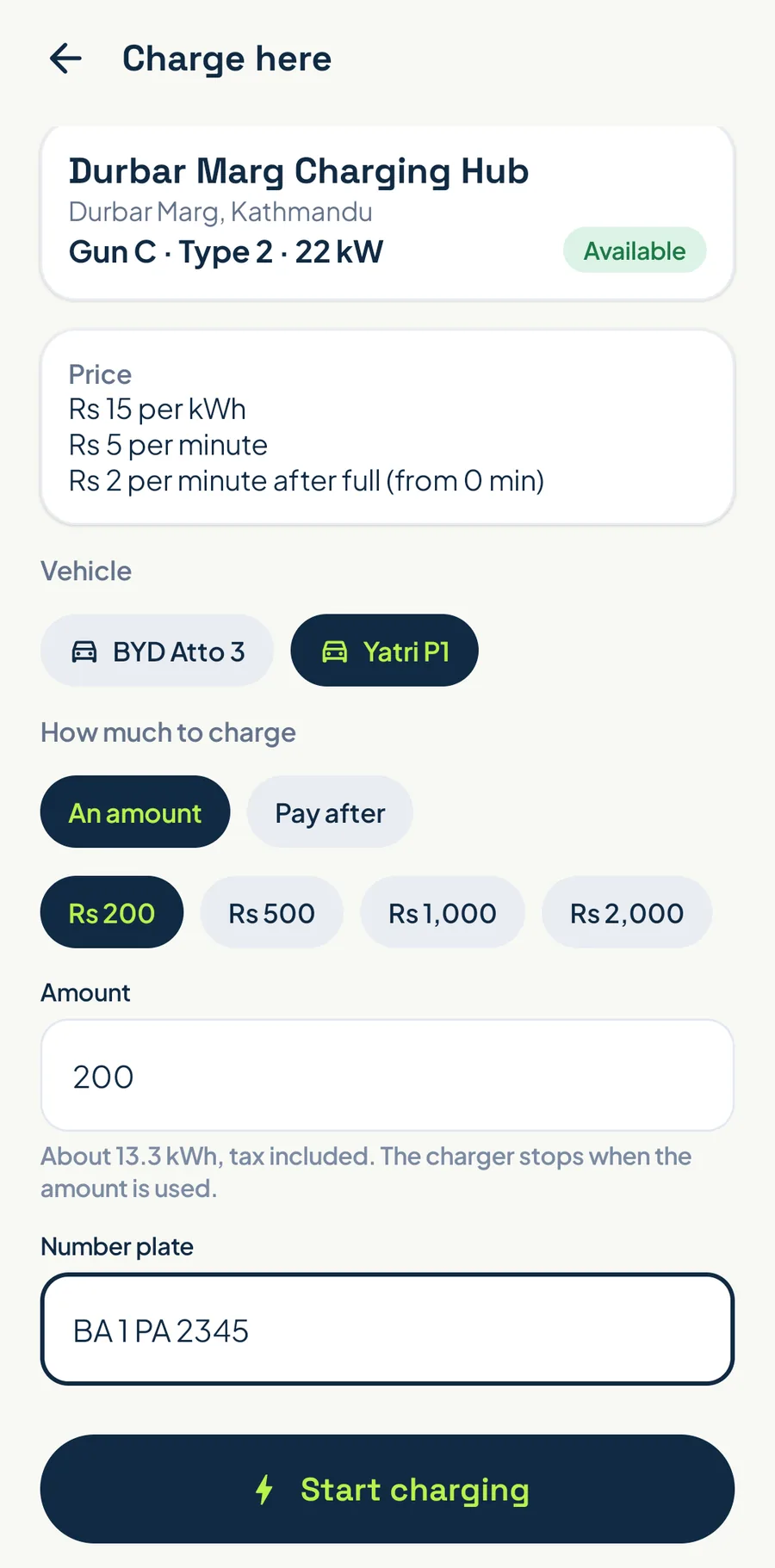
Check the price, pick your car and an amount. The app shows roughly how many kWh that buys, and the charger stops by itself when the amount is used.
Where to find it
- Driver app
- Charge here
- Start charging
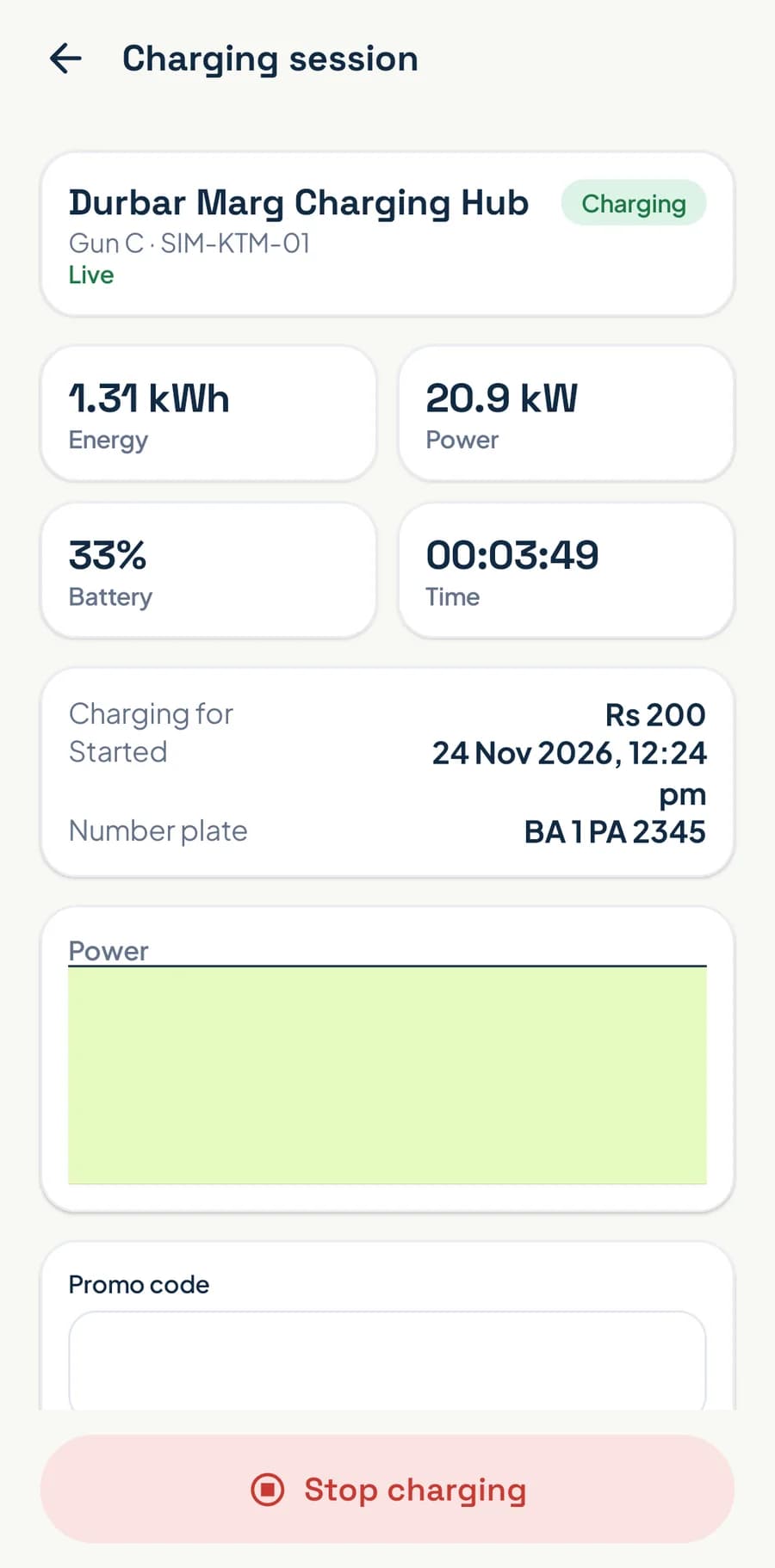
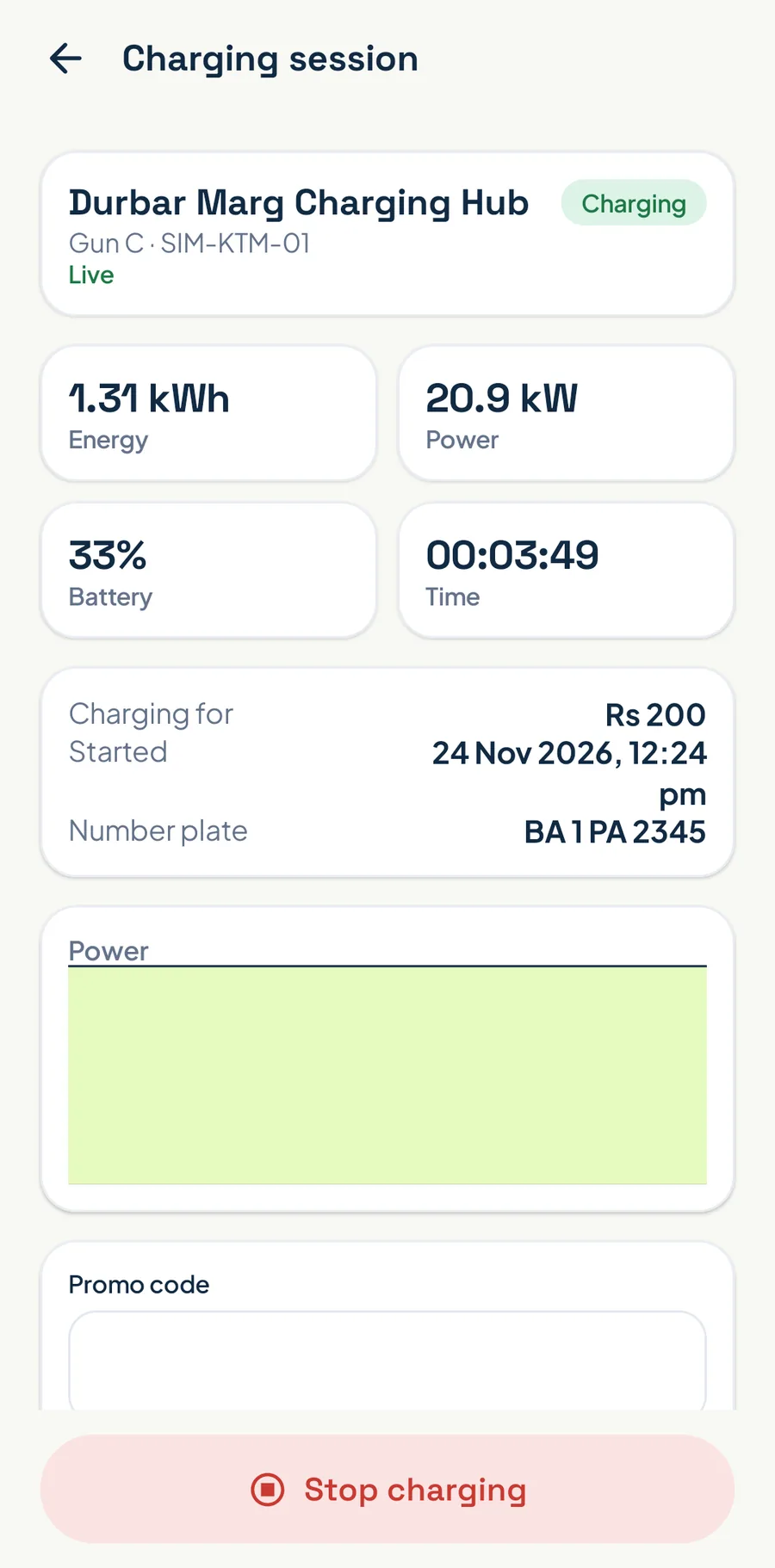
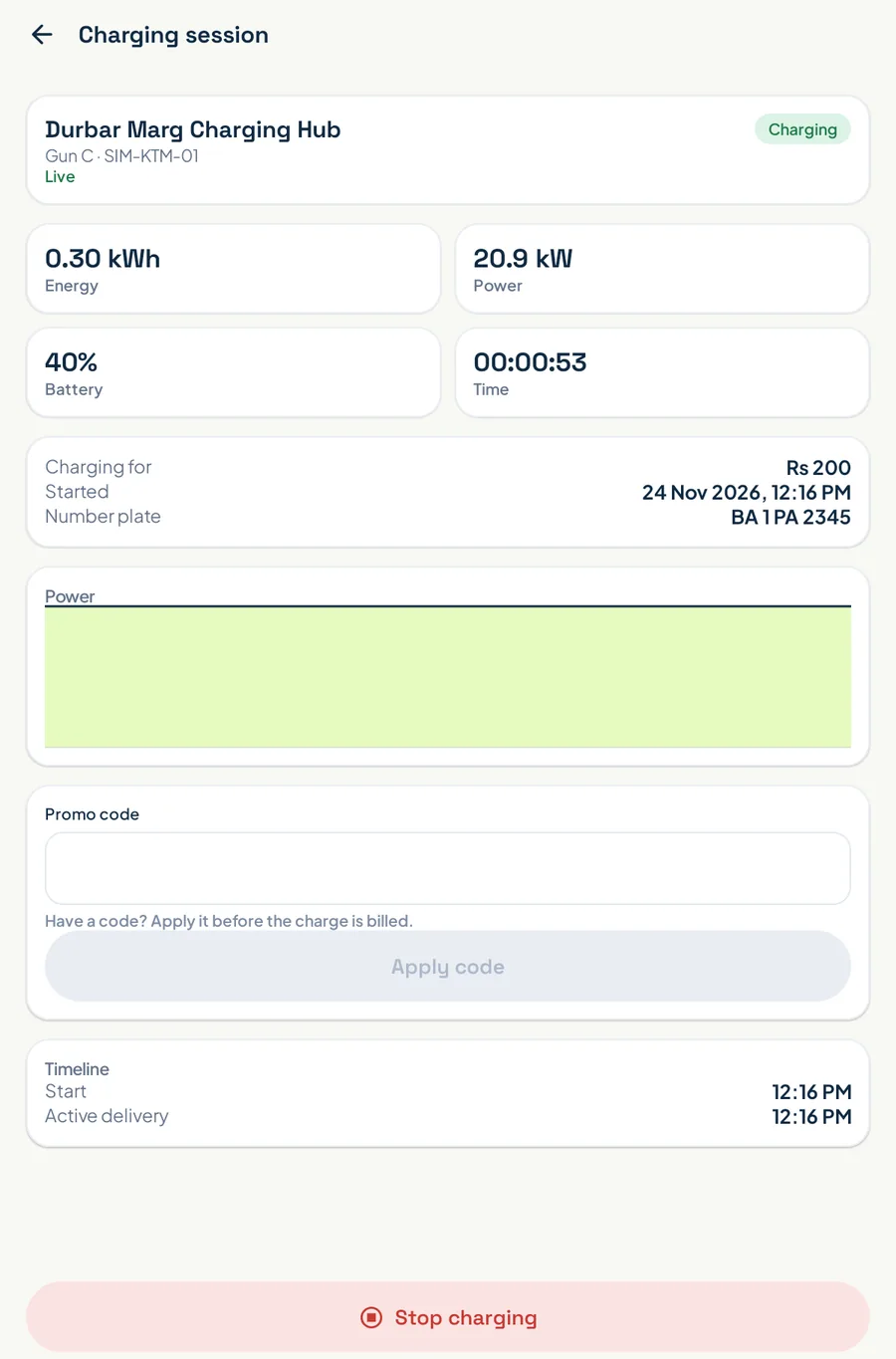
Watch it charge, live
Energy, power, battery level and time update every few seconds. Stop whenever you like; the charge keeps going if you close the app.
Where to find it
- Driver app
- Charging session
- Stop charging
Get the receipt
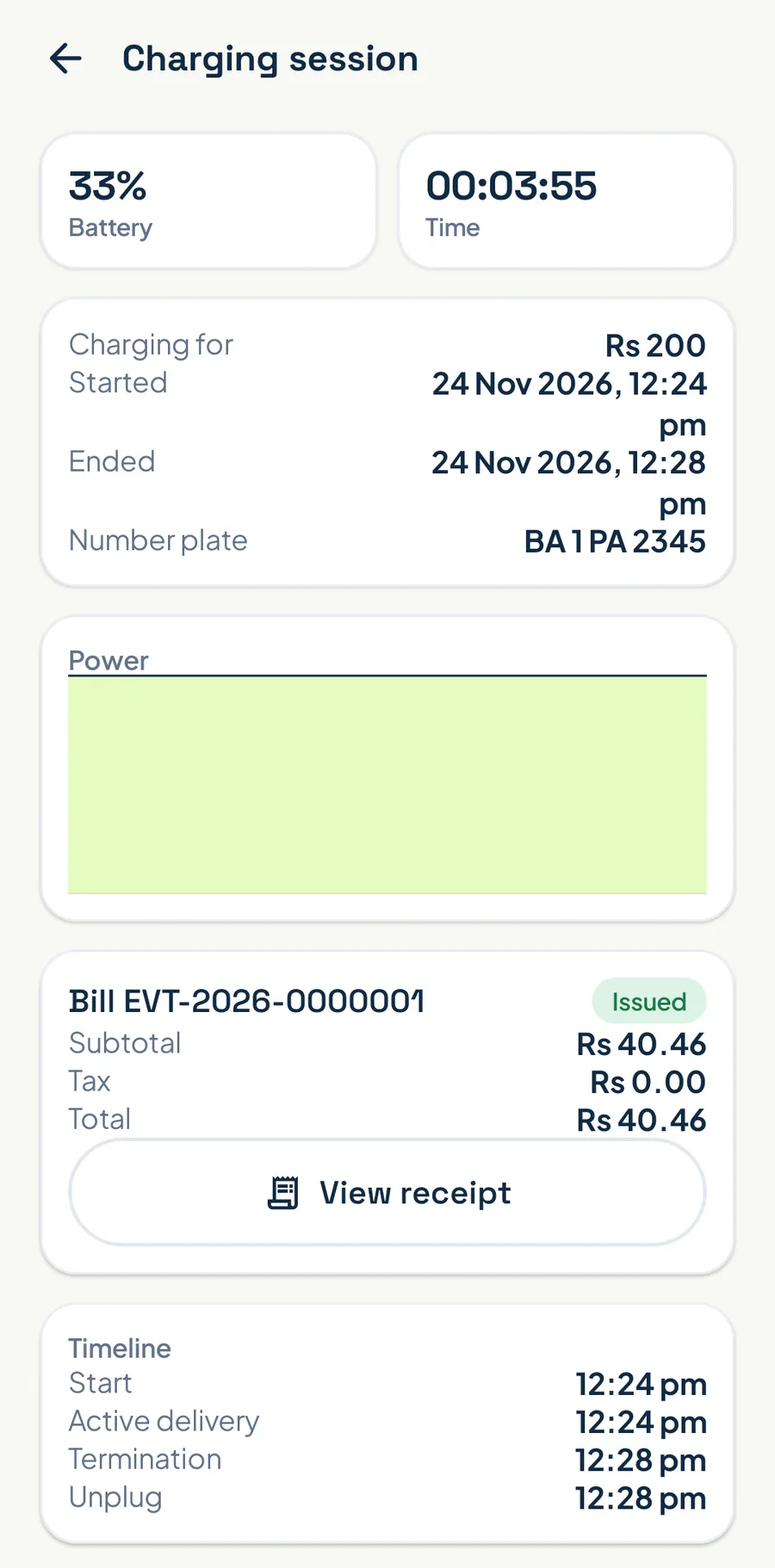
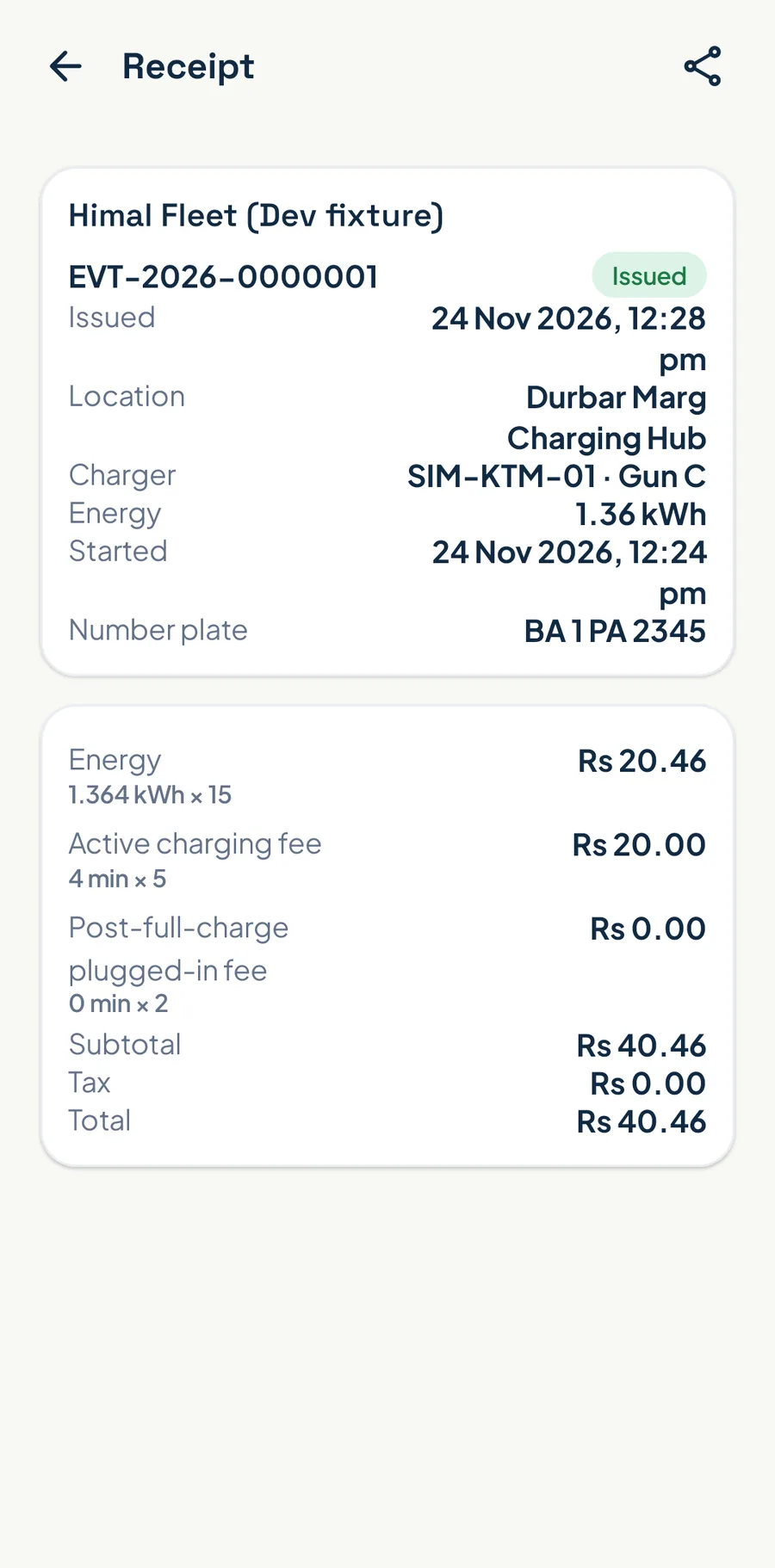
When the charge ends the bill is issued at once: energy, charging time and any fee, line by line. Share it or keep it in the app.
Where to find it
- Driver app
- Charging session
- View receipt
History and wallet statement
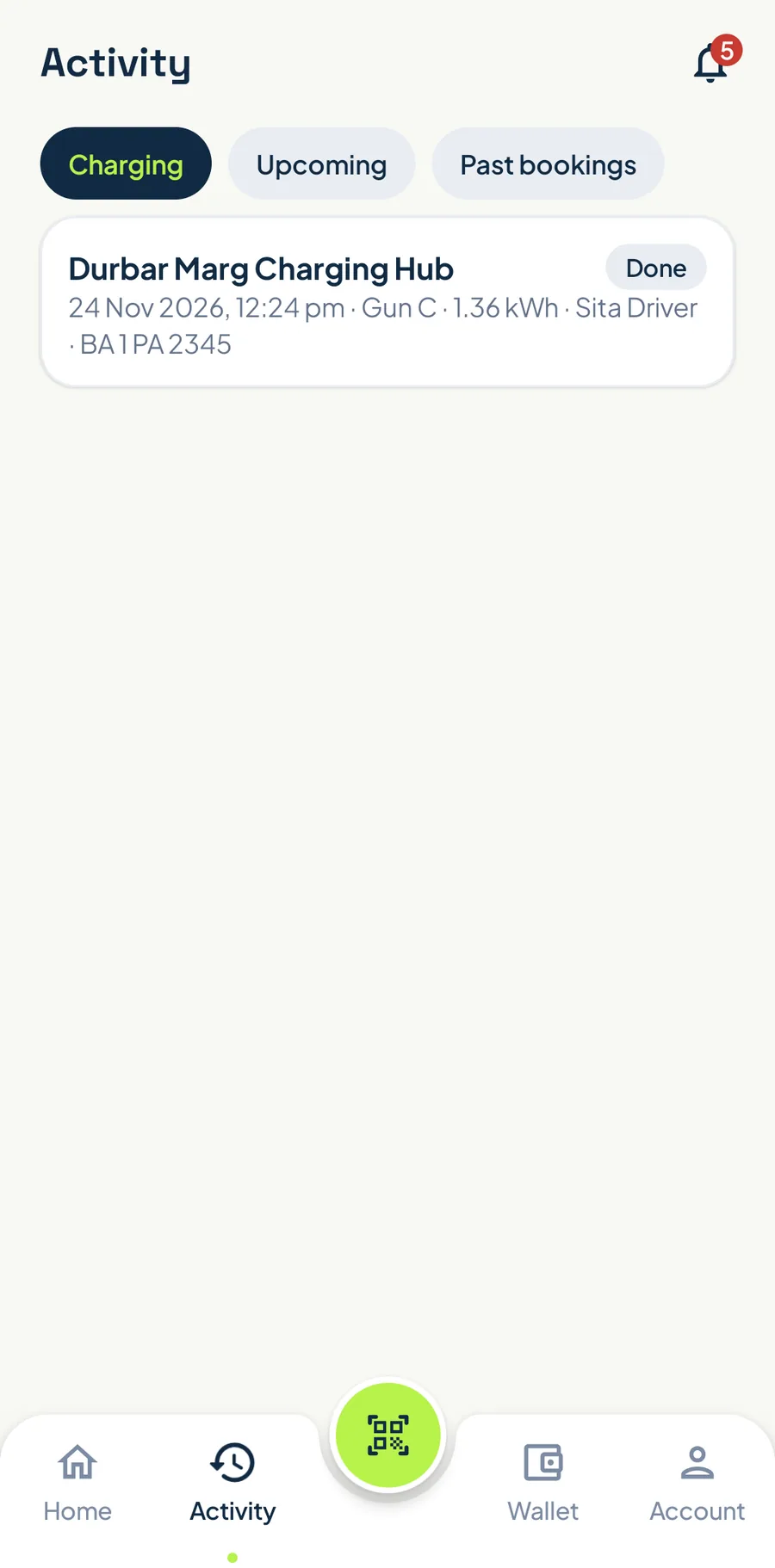
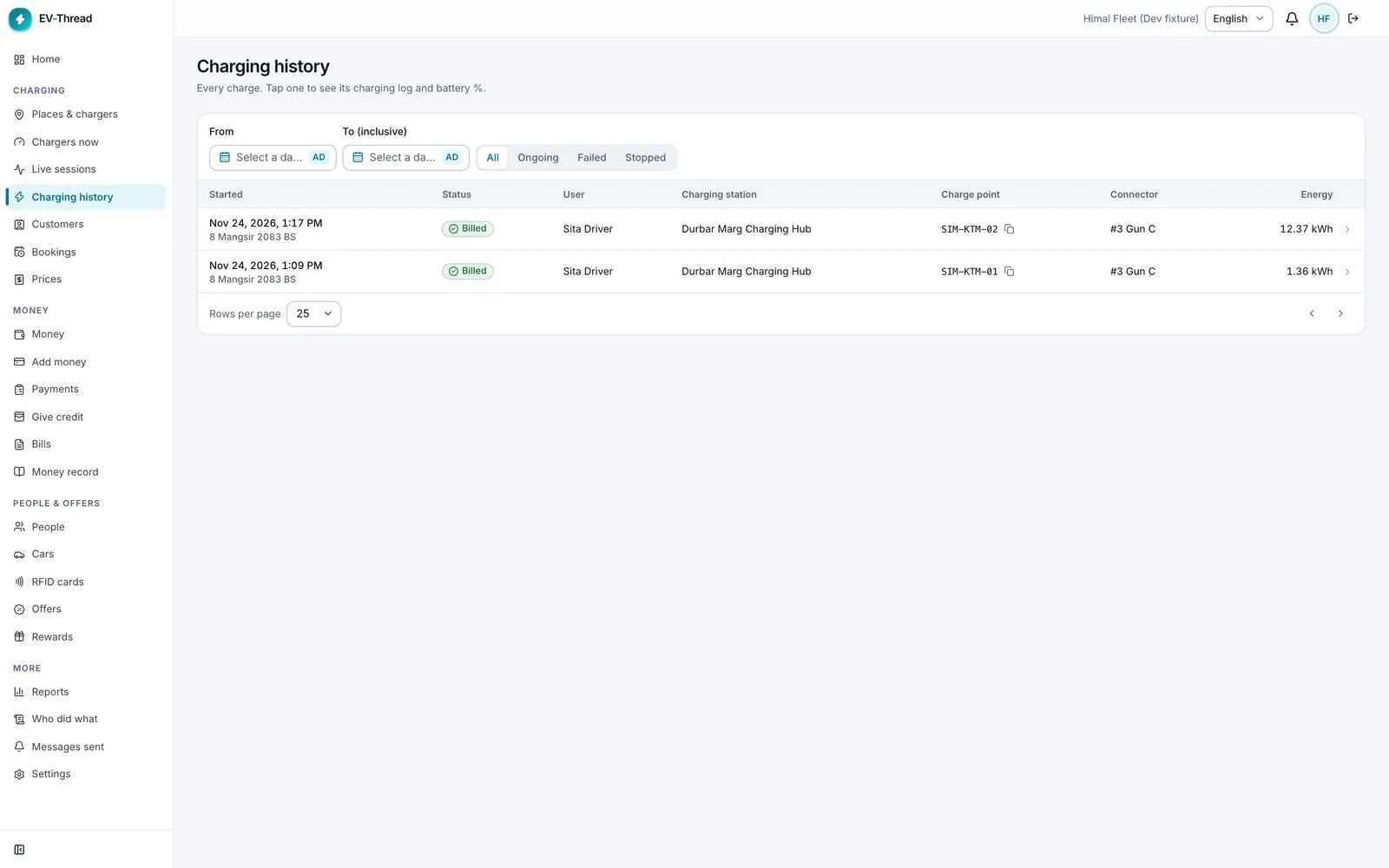
Every charge is listed under Activity, and the Wallet statement shows each top-up and each charge with its amount.
Where to find it
- Driver app
- Activity
- Wallet
- Statement
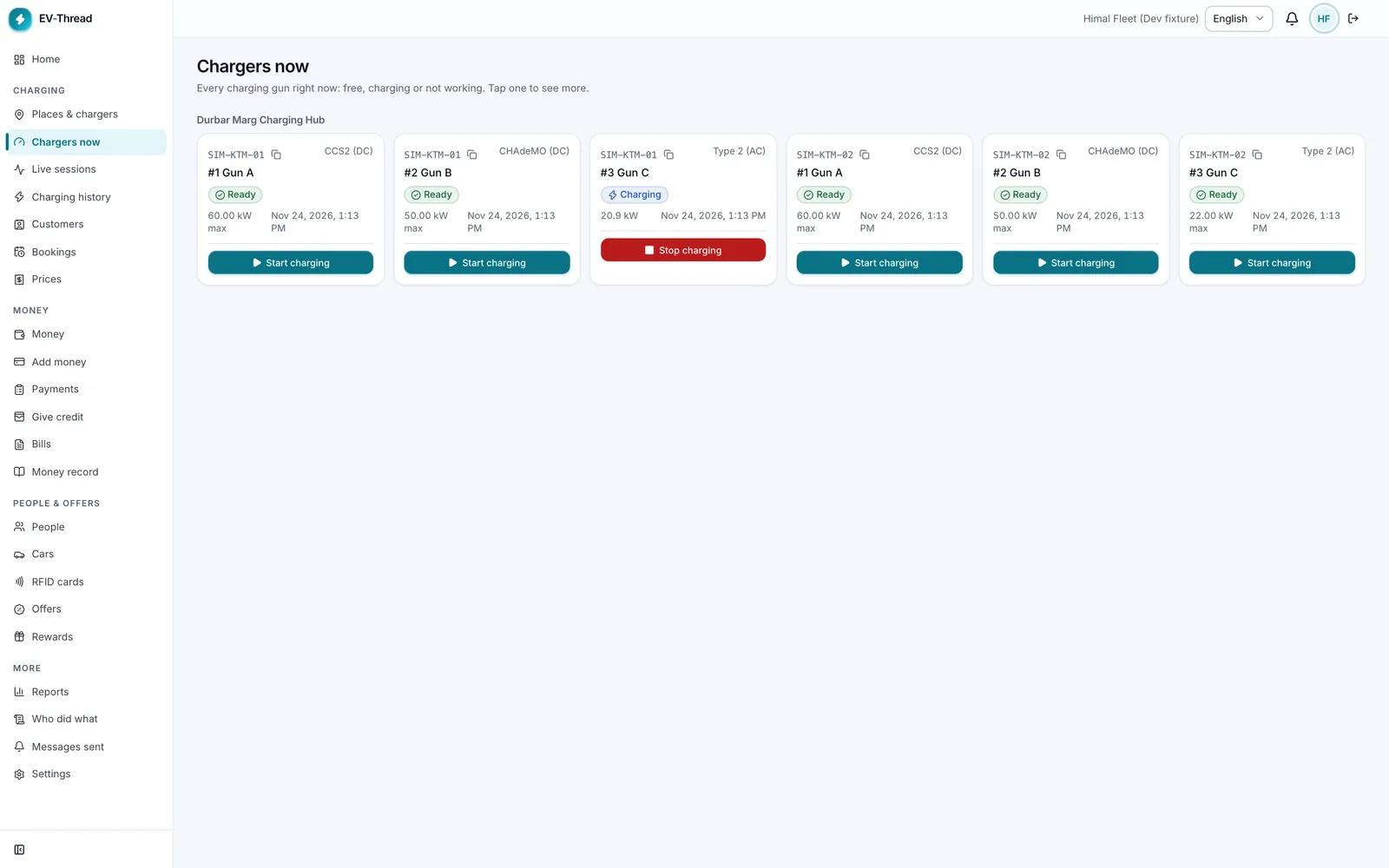
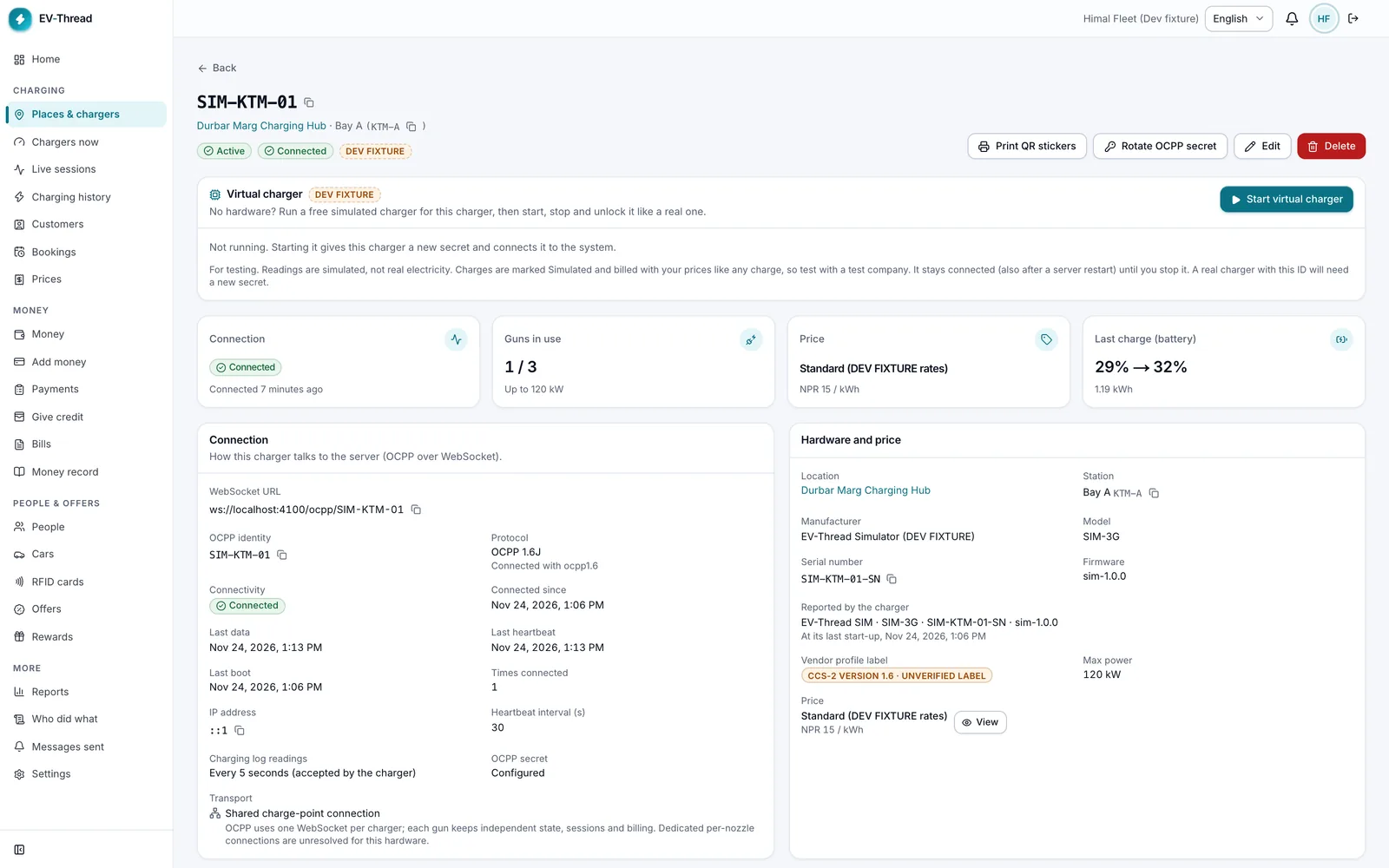
Chargers & live status: the Control Panel
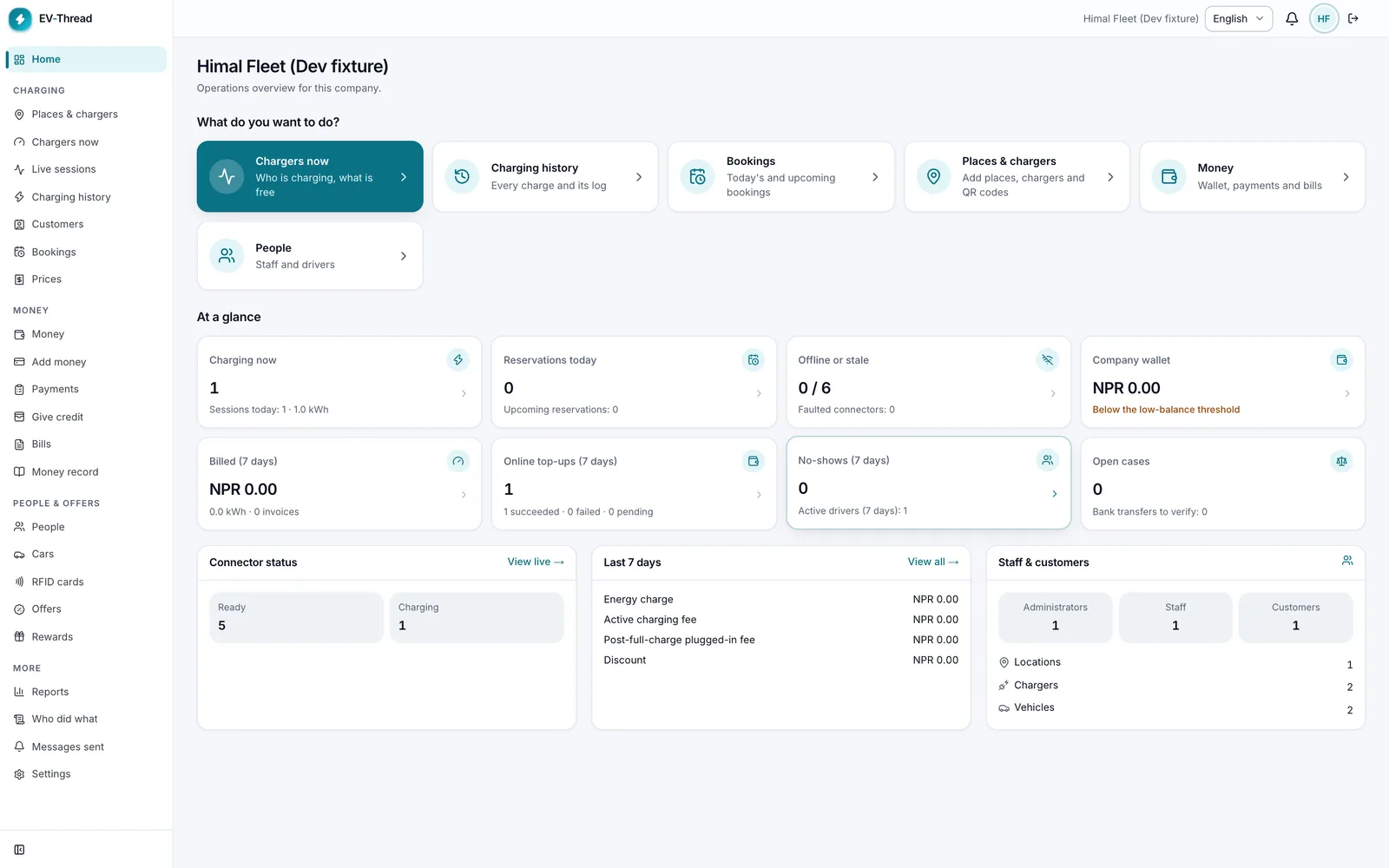
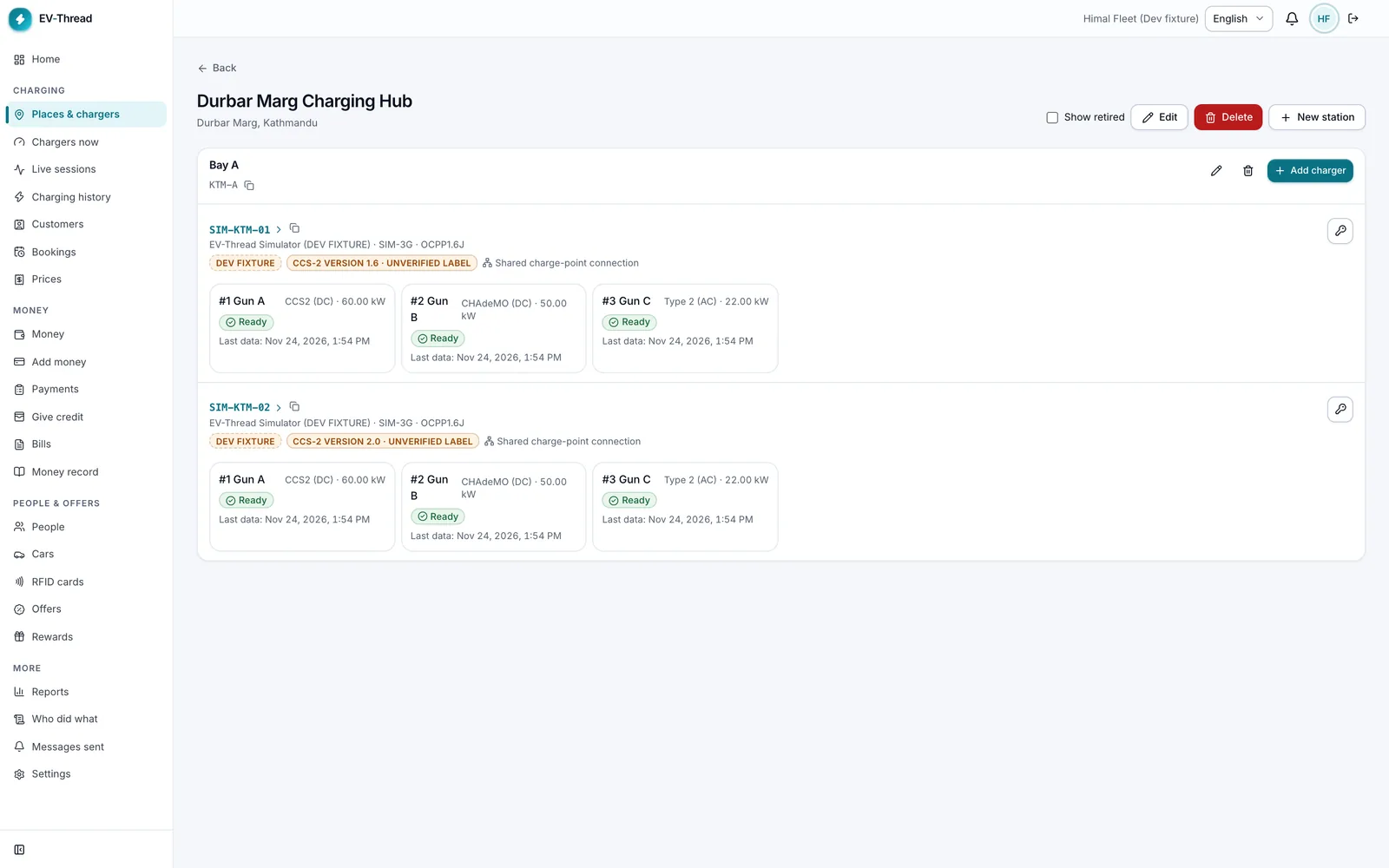
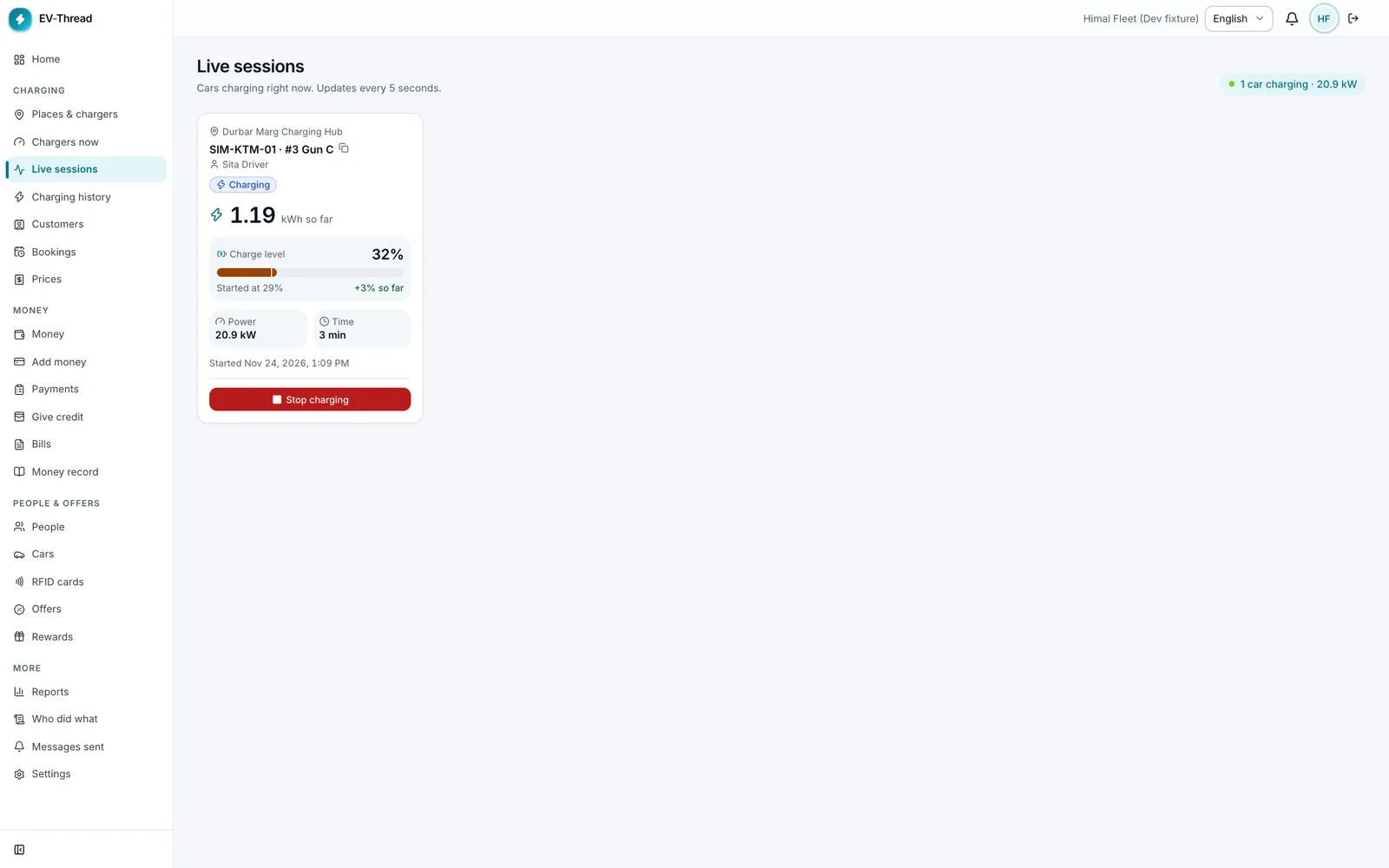
For company admins and staff: every charger, every gun and every charge, live.
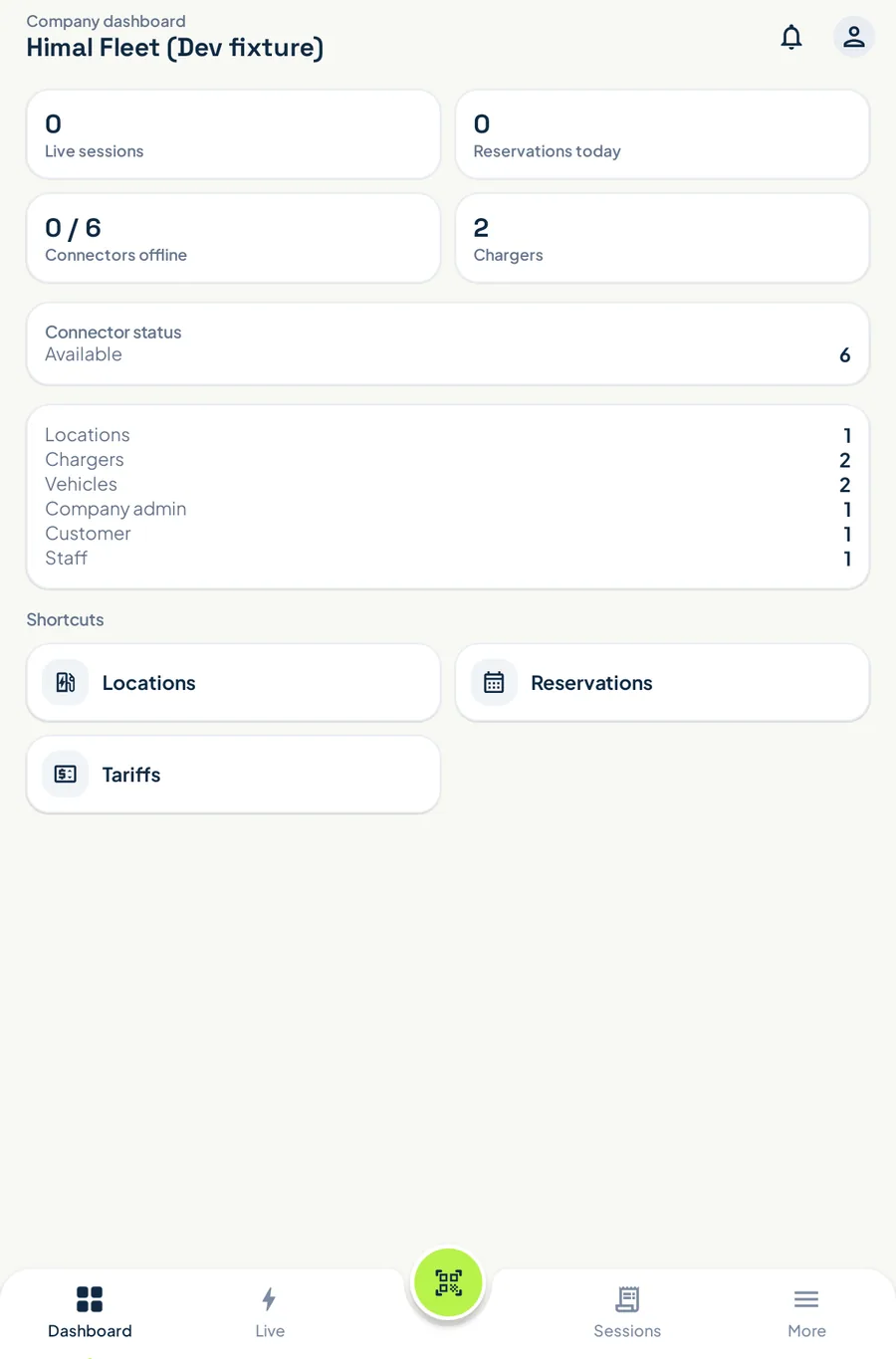
On the go: the staff app
Staff sign in to the same mobile app with their work account and get the company dashboard, live charges and sessions on a phone or tablet.
Where to find it
- Staff app
- Sign in with a staff account
- Dashboard
- Live